Example
{{fields.customers.id.view_label}}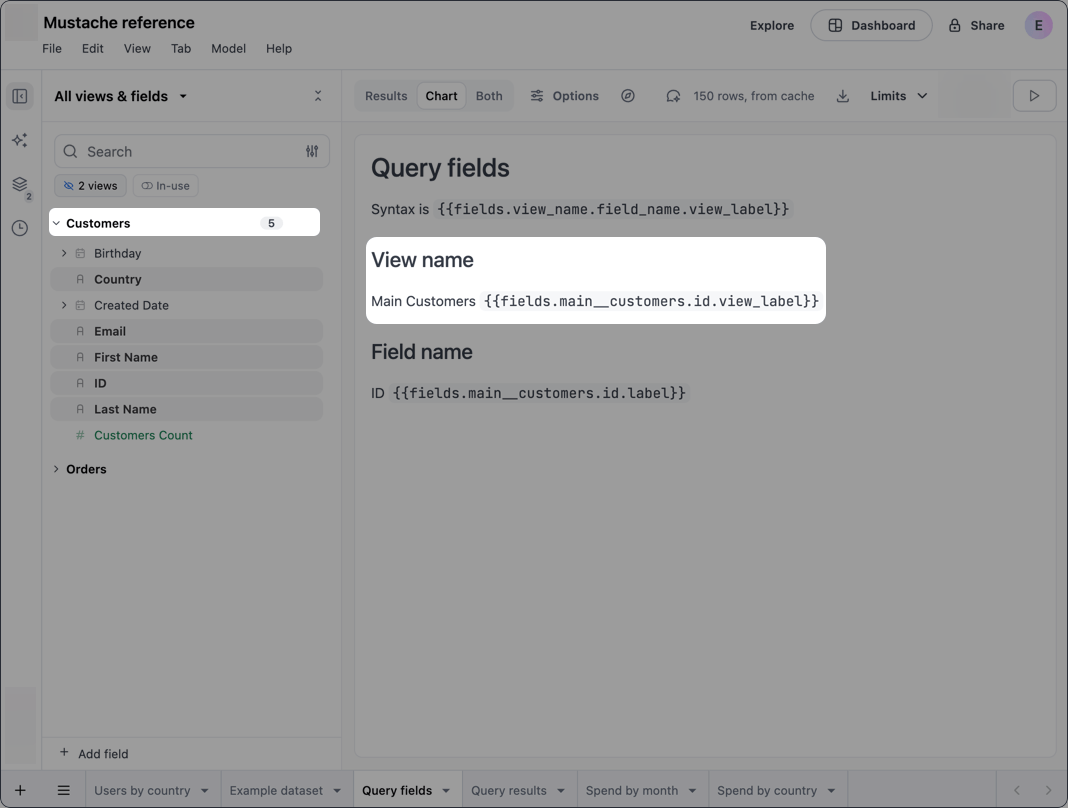
In Mustache, a tag is indicated by double mustaches, for example {{results}}. A tag is made up of one or more keys, which are used to find the requested data. In the previous example, results is the key in {{results}}.
Several JustAsk tags require specific keys, such as a view_name or a field_name. Refer to the following sections for help finding this information in JustAsk.
The view_name and field_name keys are used in Query field and Query result tags.
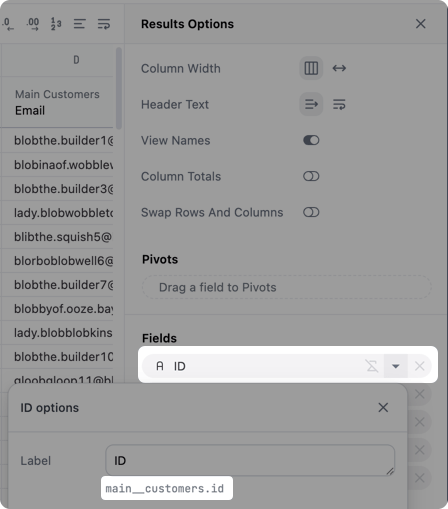
To locate the name of a view or field in a query:
Below the Label field will be the name of the view and the field. In the example image (click to enlarge), this is main__customers.id. main__customers is the view_name, and id is the field_name.
The control_id and filter_id keys are used in Control and Filter tags for dashboards.
To locate the ID of a dashboard control or filter:
8v_G12D7.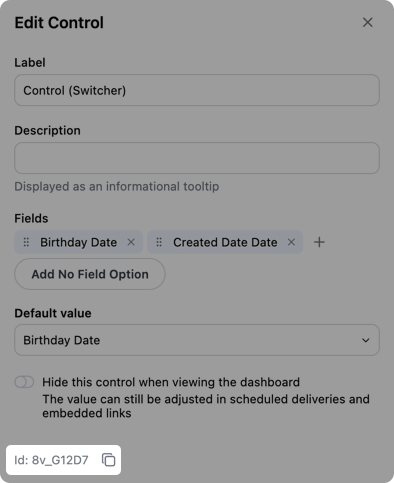
Returns metadata about a specific query field.
{{fields.view_name.field_name.element}}Requires the following keys:
fields
Accesses query field data
view_name
The name of the view that contains the field
field_name
The name of the field
element
The data you want to retrieve, such as the display name of the field. Refer to the following sections for information on what is currently supported.
Returns the display name of the view that contains the specified field.
{{fields.view_name.field_name.view_label}}Example
{{fields.customers.id.view_label}}
Returns the display name of the field.
{{fields.view_name.field_name.label}}Example
{{fields.customers.id.label}}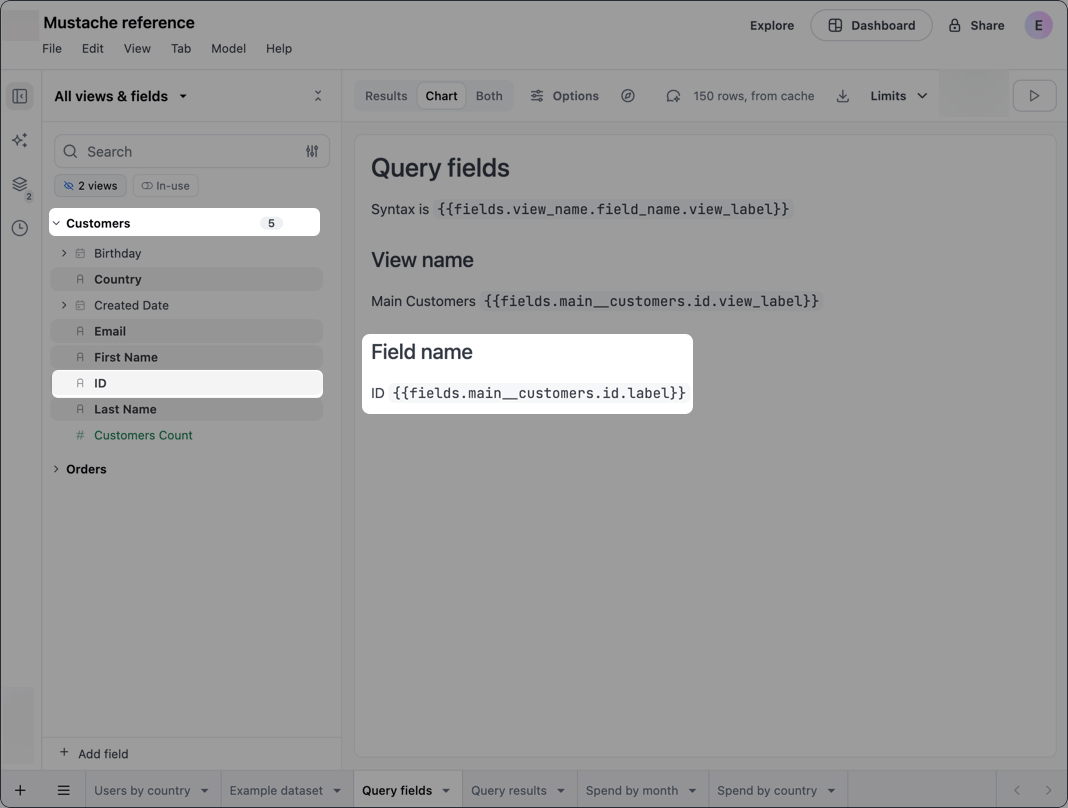
Returns the description of the field as defined in the model.
{{fields.view_name.field_name.description}}{{fields.customers.lifetime_value.description}}Returns a result value from a query. The syntax varies depending on the data point you want to retrieve, but typically looks like the following:
{{result.data_point.view_name.field_name.value_type}}The following keys must always be provided, regardless of the data point being retrieved:
result
Accesses query result data
data_point
The type of data point you want to retrieve, such as the value of a field in the first row of query results (_first). Refer to the following sections for information on what’s currently supported.
view_name
The name of the view that contains the field
field_name
The name of the field. Refer to the Locating keys section for help finding this and the view_name.
value_type
Determines the level of interactivity and formatting of the returned value:
value - Interactive; user can click to copy, drill, etc.value_static - Formatting applied, no interactivityraw - No formatting or interactivityReturns the first value in the result set for the specified field.
{{result._first.view_name.field_name.value_type}}This example uses value_static, which returns a formatted value with no interactivity:
Example
{{result._first.customers.first_name.value_static}}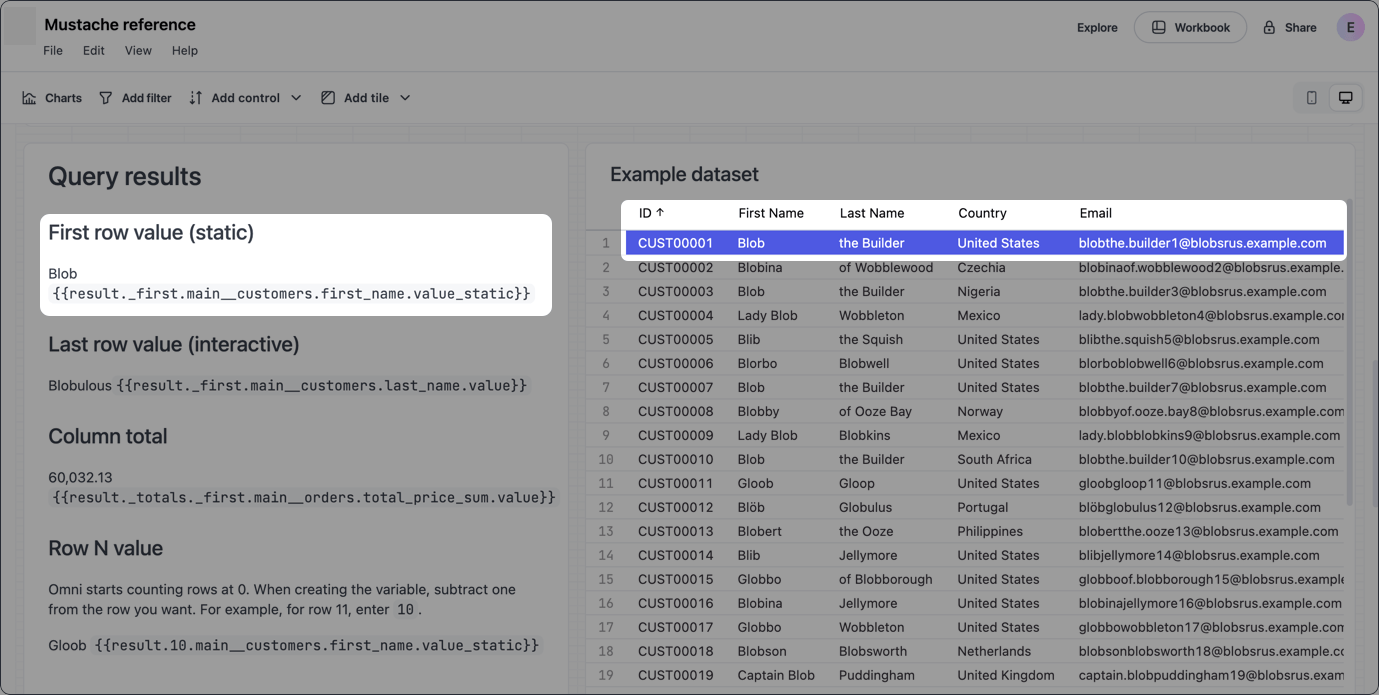
Returns the last value in the result set for the specified field.
{{result._last.view_name.field_name.value_type}}This example uses value, which allows dashboard users to click and interact with the value. Note the dropdown menu over the value in the example image.
Example
{{result._last.customers.first_name.value}}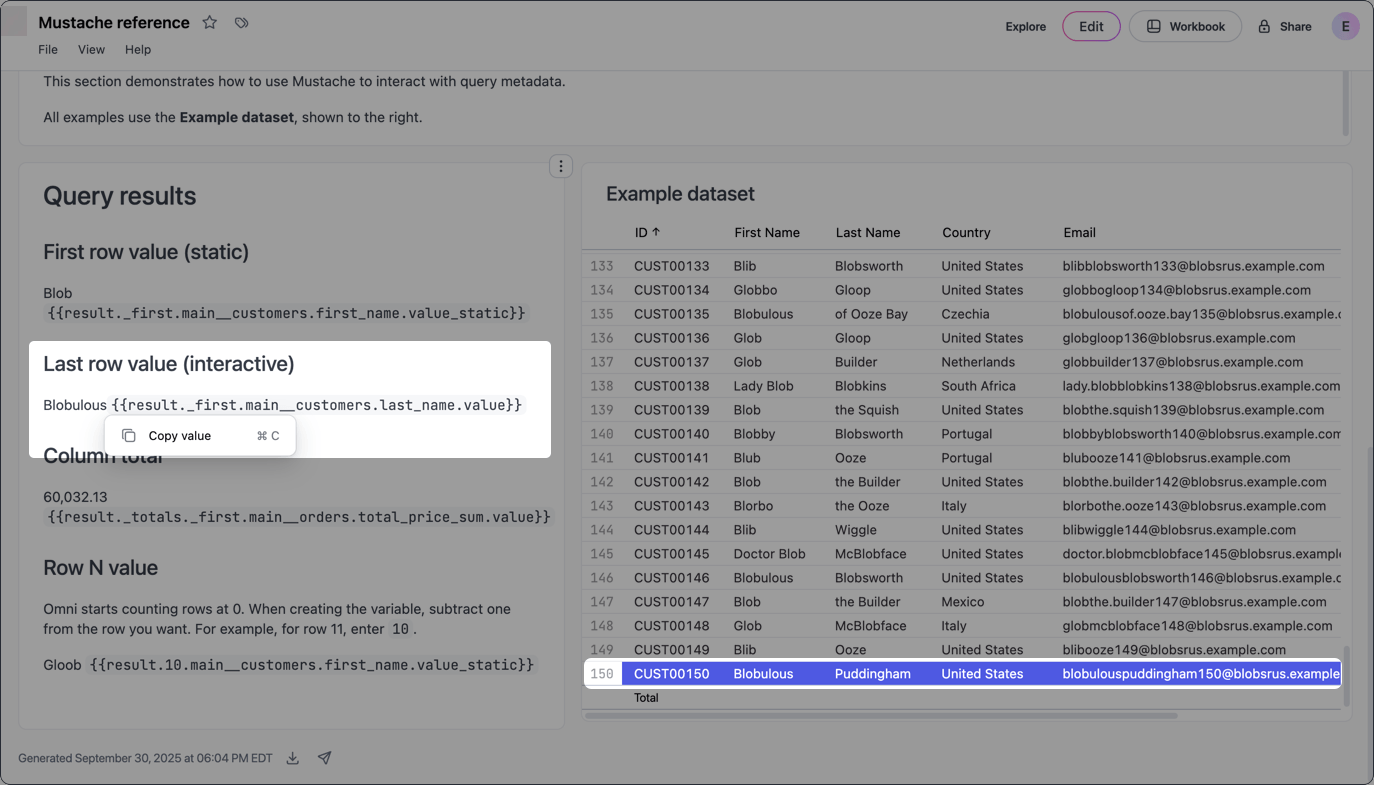
Returns a field value from the specified row (row_number) in the result set.
In JustAsk, row numbering begins at 0. When you define the variable, subtract one from the number of the actual row you want to reference.
{{result.row_number.view_name.field_name.value_type}}For example, to return a value from row 11, use 10 as the row_number:
Example
{{result.10.customers.first_name.raw}}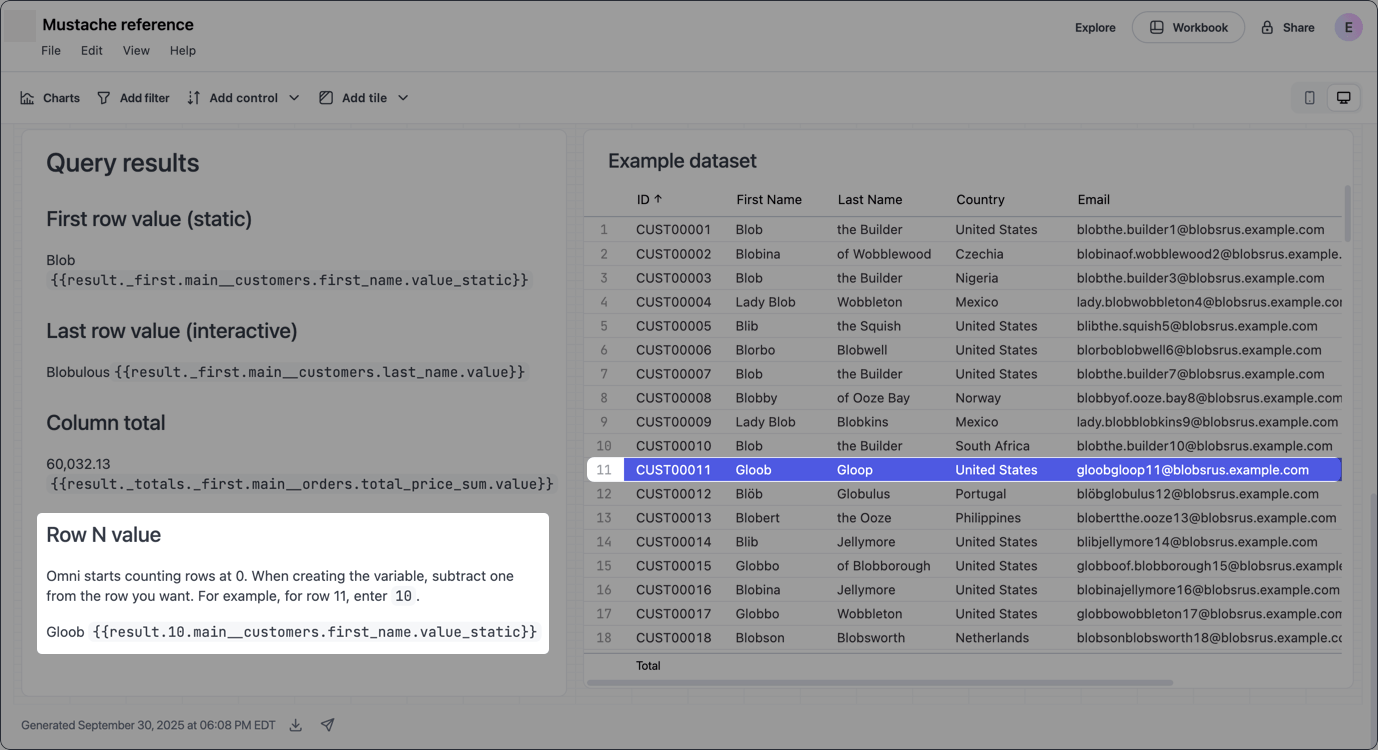
Returns the total of a specified column in the result set. Requires Column totals to be enabled in the query’s Results options panel.
{{result._total.first.view_name.field_name.value_type}}Example
{{result._total.first.customers.total_price_sum.value}}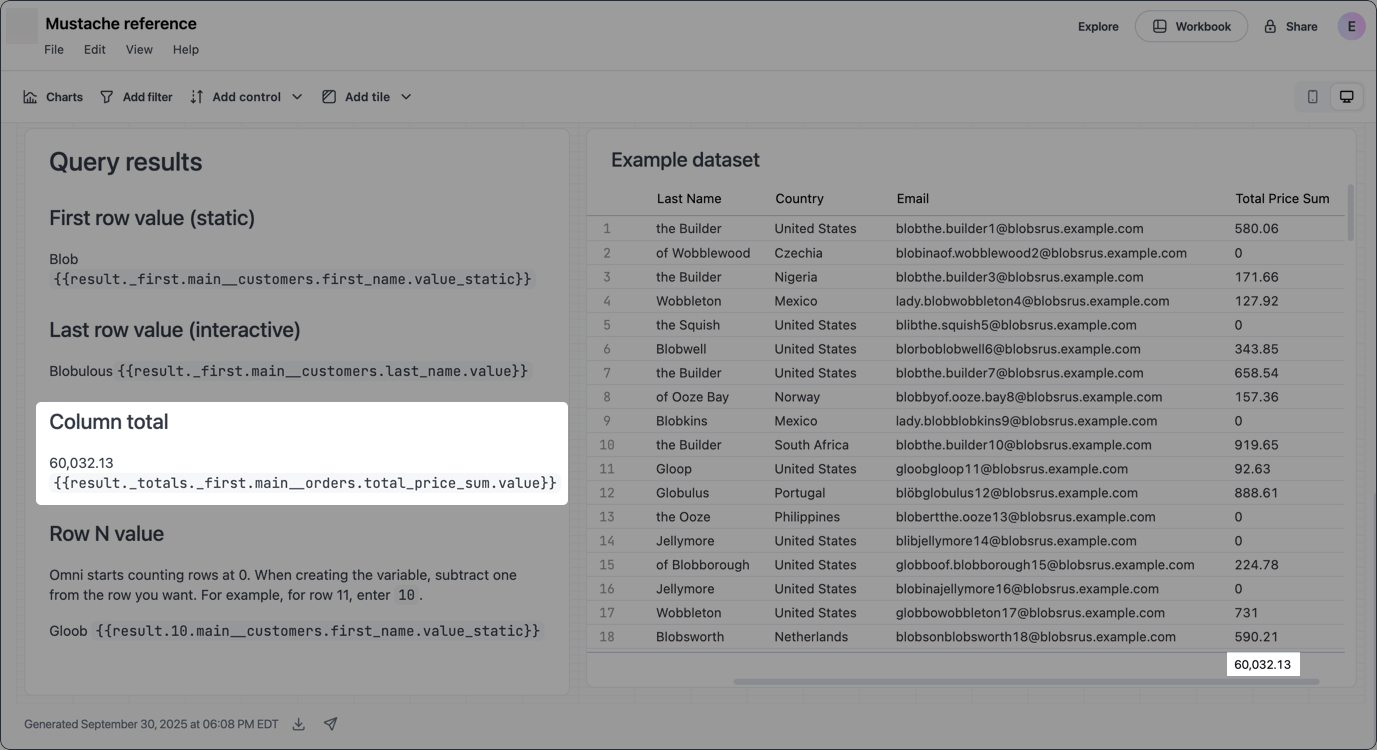
Returns the total of a specified row (row_number) in a pivoted result set. Requires a query with at least one pivot and for Row totals to be enabled in the query’s Results options panel.
In JustAsk, row numbering begins at 0. When you define the variable, subtract one from the number of the actual row you want to reference.
{{result.row_number.row_total.view_name.field_name.value_type}}For example, to return values from row 6, use 5 as the row_number:
{{result.5.row_total.order_items.sale_price_sum.value}}Returns the grand total of a specified column in a pivoted result set. Requires a query with at least one pivot and for Column totals to be enabled in the query’s Results options panel.
{{result.totals._first.row_total.view_name.field_name.value_type}}{{result.totals._first.row_total.customers.total_price_sum.value}}Returns metadata about dashboard and workbook filters.
The syntax differs depending on where the filter is located:
{{filters.filter_id.element}}{{filters.view_name.field_name.element}}{{filters.filter_id.element}}{{filters.view_name.field_name.element}}Requires the following keys:
filters
Accesses filter data
filter_id
The ID of a dashboard filter. Refer to the Locating keys section for help finding this value.
view_name
The name of the view that contains the field used in a workbook filter
field_name
The name of the field used in a workbook filter. Refer to the Locating keys section for help finding this and the view_name.
element
The data you want to retrieve, such as label. Refer to the following section for information on what’s currently supported.
Returns the label of the filter. In a dashboard, open the Edit panel for the filter and locate the Label field.
{{filters.filter_id.label}}{{filters.view_name.field_name.label}}Example (workbook)
{{filters.customers.country.label}}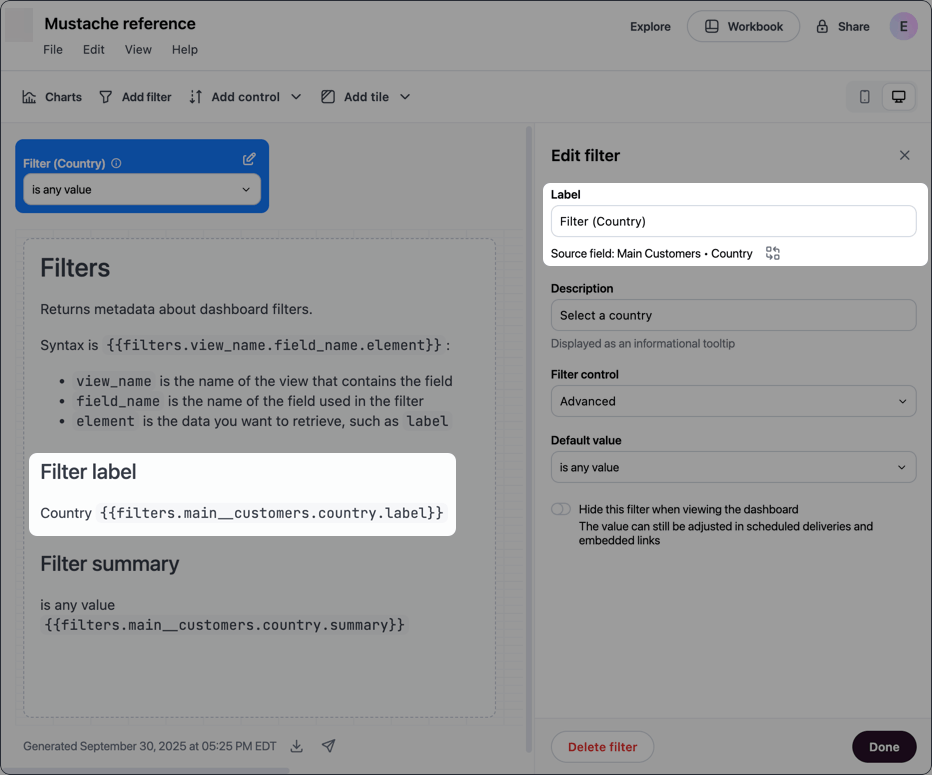
Returns the default value (summary) of the filter. In a dashboard, open the Edit panel for the filter and locate the Default value field.
{{filters.filter_id.summary}}{{filters.view_name.field_name.summary}}Example (workbook)
{{filters.customers.country.summary}}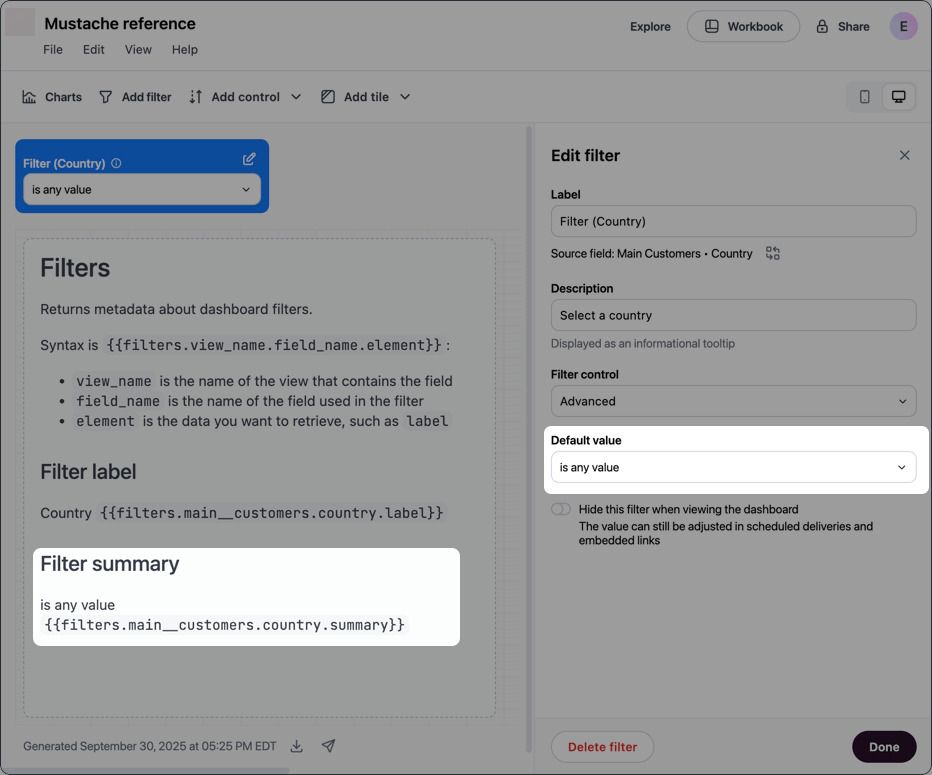
Returns the current value of the filter.
{{filters.filter_id.value}}{{filters.view_name.field_name.value}}{{filters.customers.country.value}}Returns the current value of the filter, URL-encoded. Use this when you need to include filter values in URL query parameters within Markdown links.
{{filters.filter_id.value_url_encoded}}{{filters.view_name.field_name.value_url_encoded}}[View details](https://example.com/report?country={{filters.8v_G12D7.value_url_encoded}})Returns the URL-encoded JSON of the filter.
{{filters.filter_id.json}}{{filters.view_name.field_name.json}}{{filters.8v_G12D7.json}}Returns metadata about dashboard controls.
{{controls.control_id.element}}Requires the following keys:
controls
Accesses control data
control_id
The ID of the control, located in the Edit control panel. Refer to the Locating keys section if you need help finding this panel.
element
The data you want to retrieve, such as label. Refer to the following section for information on what’s currently supported.
Returns the label of the control. In a dashboard, open the Edit panel for the control and locate the Label field.
{{controls.id.label}}Example
{{controls.8v_G12D7.label}}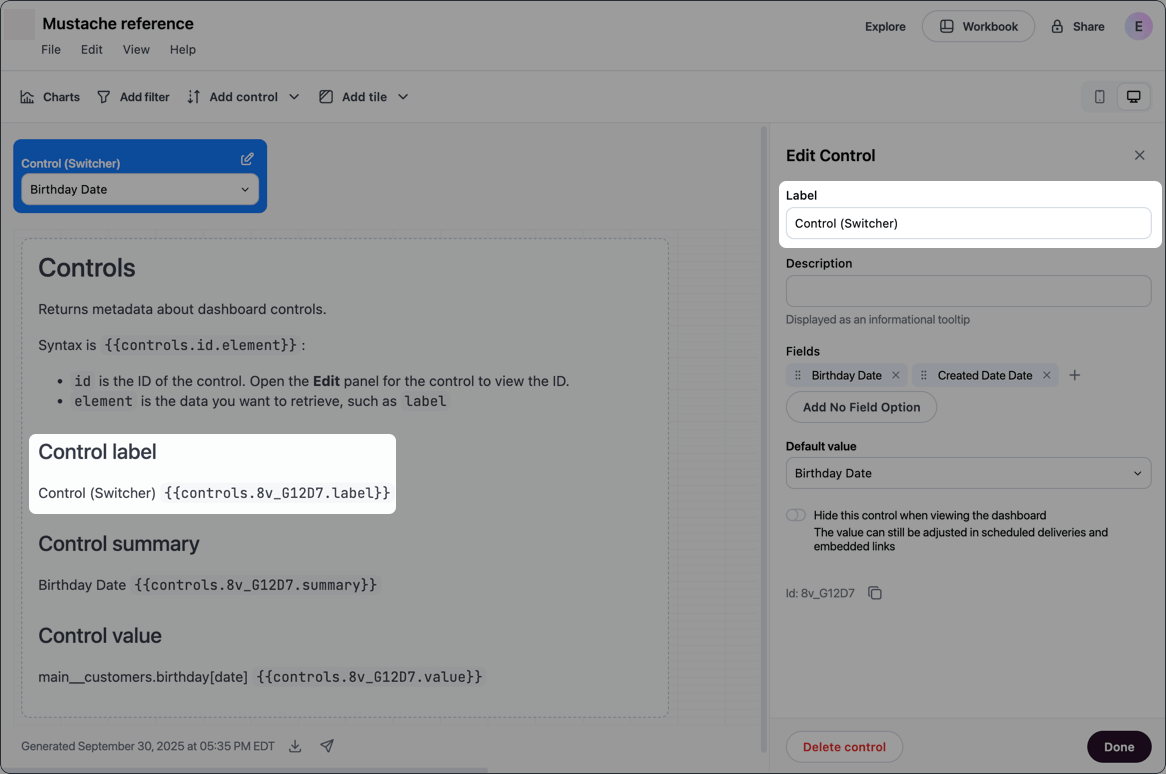
Returns the default value (summary) of the control. In a dashboard, open the Edit panel for the control and locate the Default value field.
{{controls.id.summary}}Example
{{controls.8v_G12D7.summary}}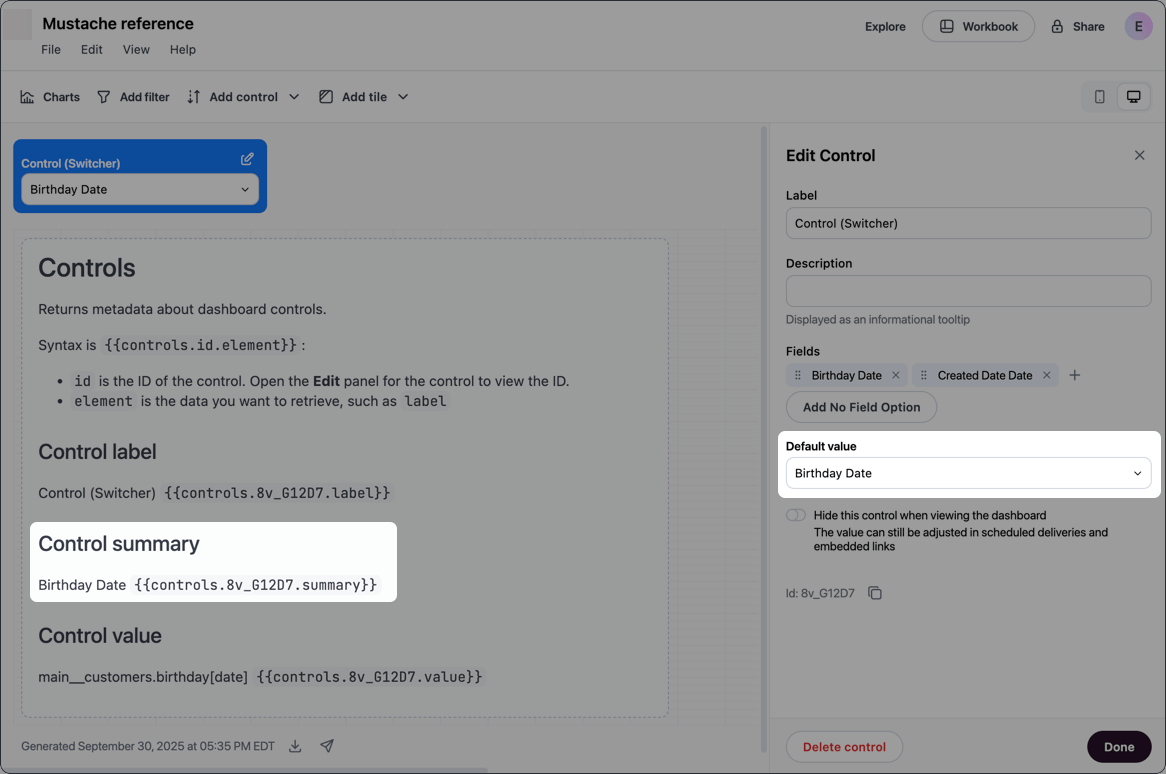
Returns the full database name (view_name.field_name) of the field currently selected in the control.
{{controls.id.value}}Example
{{controls.8v_G12D7.value}}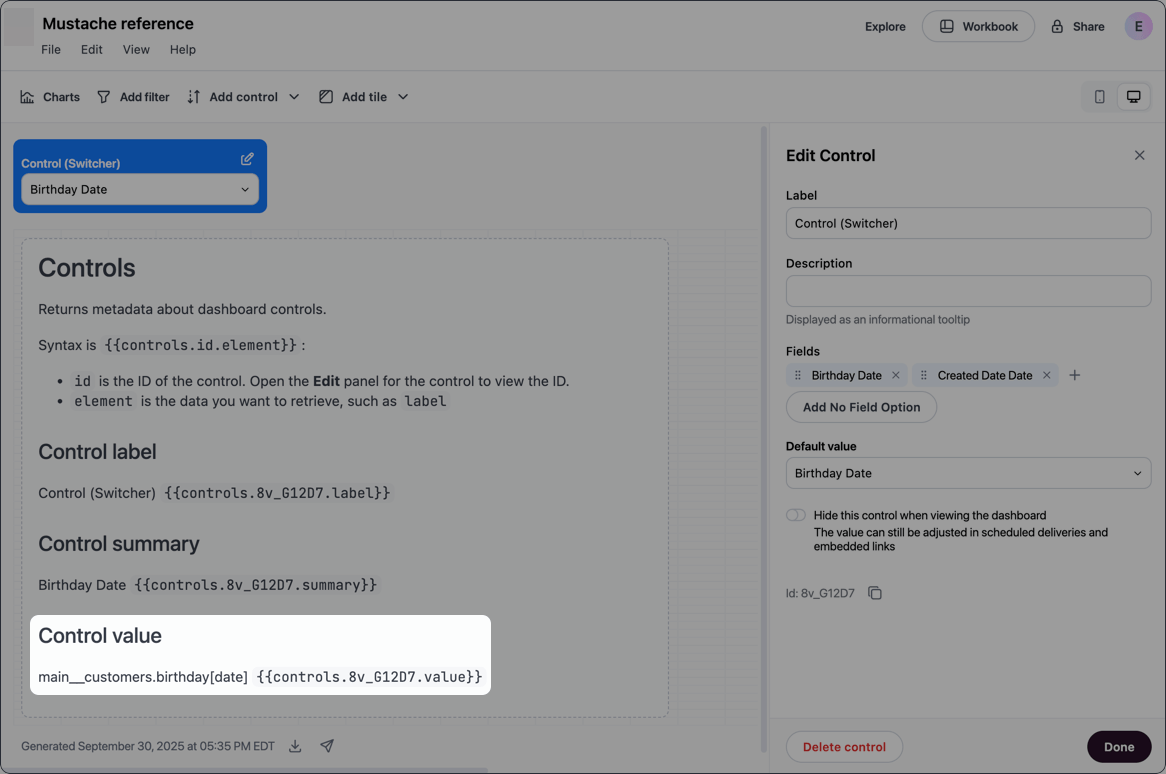
Returns the value of the control, URL-encoded. Use this when you need to include control values in URL query parameters within Markdown links.
{{controls.id.value_url_encoded}}[View details](https://example.com/report?field={{controls.8v_G12D7.value_url_encoded}})Returns the URL-encoded JSON of the control.
{{controls.id.json}}{{controls.8v_G12D7.json}}%7B%22id%22%3A%228v_G12D7%22%2C%22kind%22%3A%22FIELD%22%2C%22type%22%3A%22FIELD_SELECTION%22%2C%22field%22%3A%22customers.birthday%5Bdate%5D%22%2C%22label%22%3A%22Control%20(Switcher)%22%2C%22options%22%3A%5B%7B%22label%22%3A%22Birthday%20Date%22%2C%22value%22%3A%22maincustomers.birthday%5Bdate%5D%22%2C%22isDimension%22%3Atrue%7D%2C%7B%22label%22%3A%22Created%20Date%20Date%22%2C%22value%22%3A%22main__customers.created_date%5Bdate%5D%22%2C%22isDimension%22%3Atrue%7D%5D%7DReturns metadata about the dashboard itself. Available in Markdown dashboard tiles.
{{metadata.element}}Requires the following keys:
metadata
Accesses JustAsk metadata
element
The data you want to retrieve. Refer to the following sections for information on what’s currently supported.
Returns the timestamp when the dashboard was created.
{{metadata.createdAt}}Returns the name of the user who created the dashboard.
{{metadata.createdBy}}Returns the timestamp when the dashboard was last modified.
{{metadata.lastUpdatedAt}}Returns information about the user attributes associated with the user currently viewing the dashboard.
{{metadata.userAttributes.attribute_reference.element}}Requires the following keys:
metadata
Accesses JustAsk metadata
userAttributes
Accesses JustAsk user attribute data
attribute_reference
The reference of the attribute you want to retrieve data for, for example omni_user_email. The following sections demonstrate some of the system attributes you can use in tags.
element
The data you want to retrieve. Can be either of the following:
label - The display name of the attribute, for example User emailvalues - The attribute value set for the userReturns the email address (omni_user_email value) of the user currently viewing the dashboard.
{{metadata.userAttributes.omni_user_email.values}}Returns the user name (omni_user_name value) of the user currently viewing the dashboard.
{{metadata.userAttributes.omni_user_name.values}}Returns the user ID (omni_user_id value) of the user currently viewing the dashboard.
{{metadata.userAttributes.omni_user_id.values}}Returns true if the user currently viewing the dashboard is an Organization Admin (omni_is_org_admin value). Otherwise, returns false.
{{metadata.userAttributes.omni_is_org_admin.values}}Returns the value of a custom user attribute of the user currently viewing the dashboard, where custom_attribute_reference is the reference of the custom attribute.
{{metadata.userAttributes.custom_attribute_reference.values}}{{metadata.userAttributes.blob_entity.values}}Returns a list of user groups (omni_user_groups value) that the user currently viewing the dashboard is a member of.
If the user is a member of more than one group, the output will be a comma-delimited list like Group 1, Group 2.
{{metadata.userAttributes.omni_user_groups.values}}