Creating custom fields in JustAsk workbooks
Most fields in the field picker come directly from your database schema. However, by using custom fields you can also create new ad-hoc dimensions and measures to define custom logic and calculations that can be reused.
Custom fields can use both SQL and modeled objects. Only users with Querier permissions and higher will be able to make SQL references in calculations (though any user that can touch the workbook page can create new fields from modeled objects).
Examples
Section titled “Examples”Custom Dimension
CASE WHEN ${users.state} = 'California' THEN 'West' WHEN ${users.state} = 'New York' THEN 'East' ELSE 'Other'ENDconcat(${users.first_name}, ' ', ${users.last_name})Creating a Custom Field
Section titled “Creating a Custom Field”There are a few ways to create a new Custom Field. Once saved, the Custom Field will become available in the field picker.
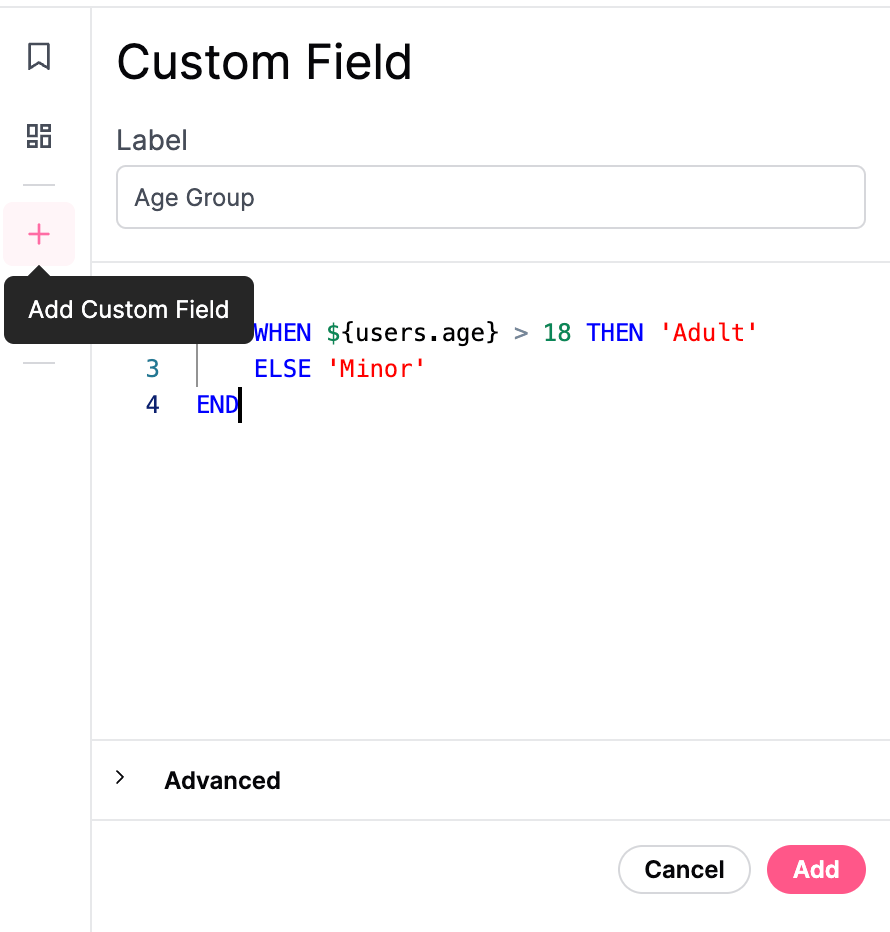
- Fields can be created from field picker, using the ”+ Add Field” menu at the bottom of the field list. Field can also be adjusted by right-clicking on any existing field and selecting ‘Edit.’
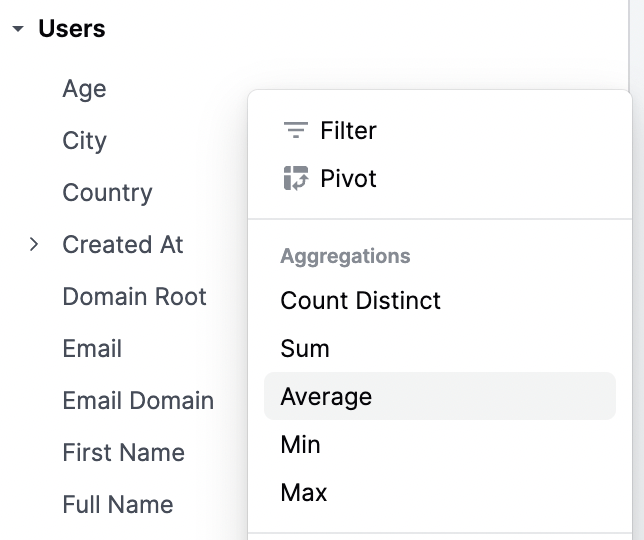
- Right click on any existing dimension and choose an aggregation (e.g. count distinct, sum, average, min, max). This will automatically create a new custom measure that appears in the field picker.
Duration fields
Section titled “Duration fields”Duration fields calculate the time difference between two timestamp fields in configurable intervals (days, hours, weeks, etc.). You can create duration fields directly from the workbook UI.
To create a duration field:
-
In the field picker, right-click on a timestamp field you want to use as the start timestamp.
-
Select Duration from the context menu.
-
In the duration configuration panel, select an end timestamp field.
-
Toggle the intervals you want to generate, such as days, hours, weeks, or months.
-
Click Save to create the field.
The new duration field will appear in the field picker with a sub-field for each selected interval.
To remove a specific interval from an existing duration field, right-click on the interval sub-field and select Delete. This removes only the selected interval from the parent duration field rather than deleting the entire field.
Custom Field Syntax
Section titled “Custom Field Syntax”You can think of a Custom Field as a snippet of SQL logic that gets injected into the generated SQL query whenever the field is brought into the analysis plane.
To create one, simply write a snippet of SQL inside the editor.
Optionally, you can leverage the substitution operator, ${view.field}, to reference other fields. The substitution operator makes code more reusable and modular, enabling you to reference other objects. It’s particularly beneficial when you want to chain together logic. For example, if you previously created a different custom field, you can reference it without having to repeat the calculation again. And, if in the future you change the definition for that field, the change will propagate to everything else that relies on it.
When you add the custom field to a query, you can see the logic applied in the SQL block.