JustAsk Agent (standalone chat)
The JustAsk Agent provides a standalone, conversational interface for exploring your data. Ask questions, generate queries, and visualize results without needing to work directly in a workbook.
Accessing the JustAsk Agent
Section titled “Accessing the JustAsk Agent”To access the JustAsk Agent, click JustAsk at the bottom of the left sidebar. The chat interface opens in a dedicated page where you can begin asking questions about your data.
Capabilities
Section titled “Capabilities”The JustAsk Agent can:
- Allow you to ask questions about your data using natural language
- Generate queries based on your prompts, routed through topics or any view in your model
- Create visualizations, including KPI tiles, directly from your prompts
- Create dashboards based on the queries and visualizations in the session
- Summarize and analyze results to identify trends, anomalies, and insights
- Attach images by pasting from your clipboard to provide visual context for your questions
- Upload files including text and Markdown files to provide additional context alongside your queries
Refer to Scoping responses for details on how to control which data the AI can access.
Uploading files
Section titled “Uploading files”You can upload text (.txt), Markdown (.md), and images to the JustAsk Agent to provide additional context for your questions. This is useful when you need to reference additional information alongside your data queries.
To upload a file:
- Click the attachment icon in the chat input
- Select a file from your computer
- The file appears as a file chip in the chat input, indicating it’s ready to be sent with your message
The JustAsk Agent can then read and reference the contents of the uploaded files when generating responses, allowing you to ask questions that combine your data with external context or documentation.
Attaching images
Section titled “Attaching images”You can paste images directly from your clipboard into the chat to provide visual context alongside your questions. This works with screenshots, images copied from web pages, or any image data on your clipboard.
To attach an image:
- Copy an image to your clipboard (for example, take a screenshot or copy an image from a web page)
- Click into the chat input
- Paste the image into the chat input
The image appears as a file chip in the chat input, indicating it’s ready to be sent with your message. You can attach multiple images to a single message by pasting them one after another.
Viewing query field details
Section titled “Viewing query field details”When the JustAsk Agent generates a query, you can view details about the fields used in the results. This helps you understand what data the AI selected and how each field is defined.
To view field details, click the icon near the top-right corner of the query results, next to the icon. A panel displays information for each field in the query, including:
- Field name - The field’s label and identifier in the model
- Definition - The SQL or calculation that defines the field
- Description - Additional context about the field, if defined in the model
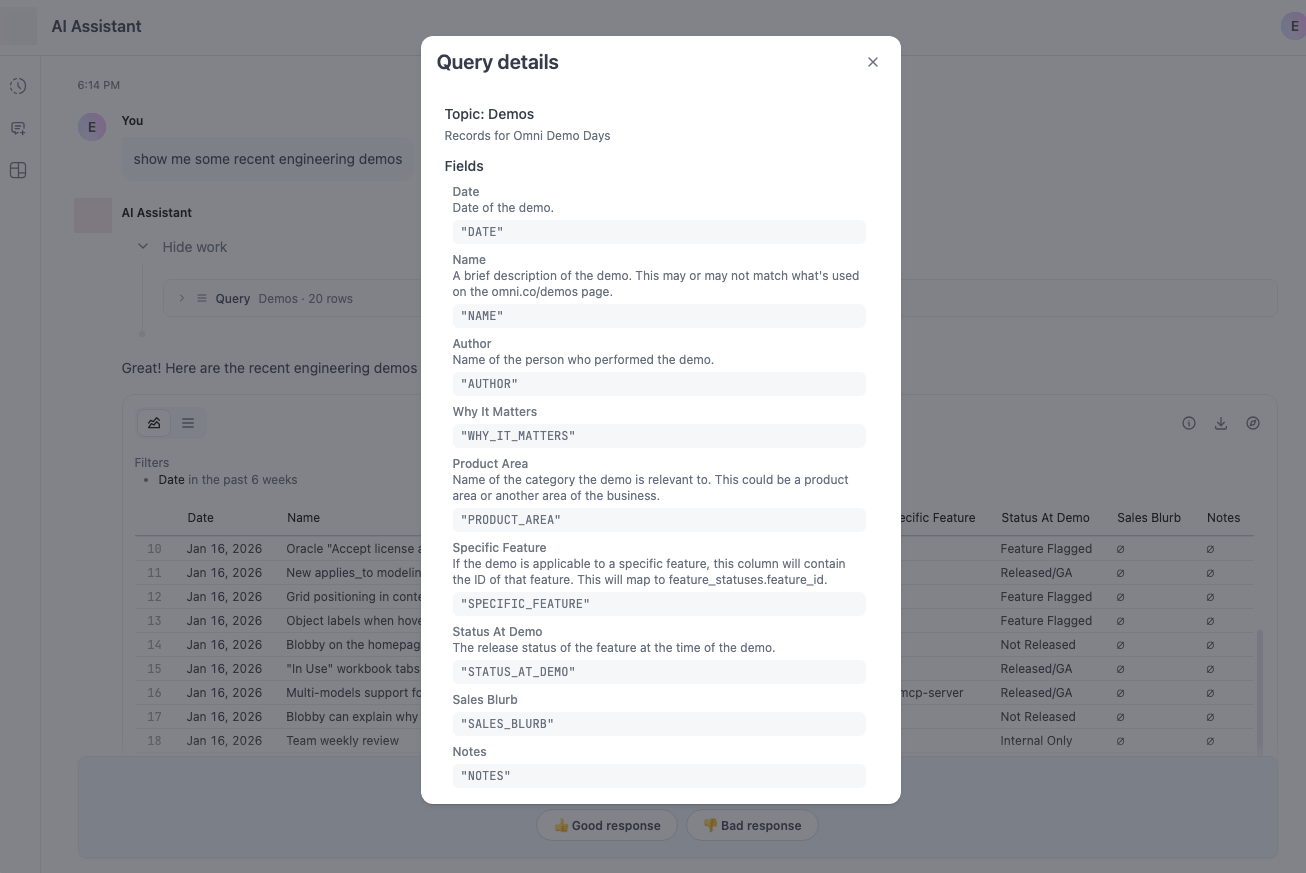
This feature provides transparency into AI-generated queries, helping you verify the AI selected appropriate fields and understand the underlying data structure.
Refreshing query results
Section titled “Refreshing query results”When you revisit a previous chat session, query results may be stale. To update the results with the latest data, click the Re-run all queries icon located at the bottom left corner of the chat box, next to the Model selector.
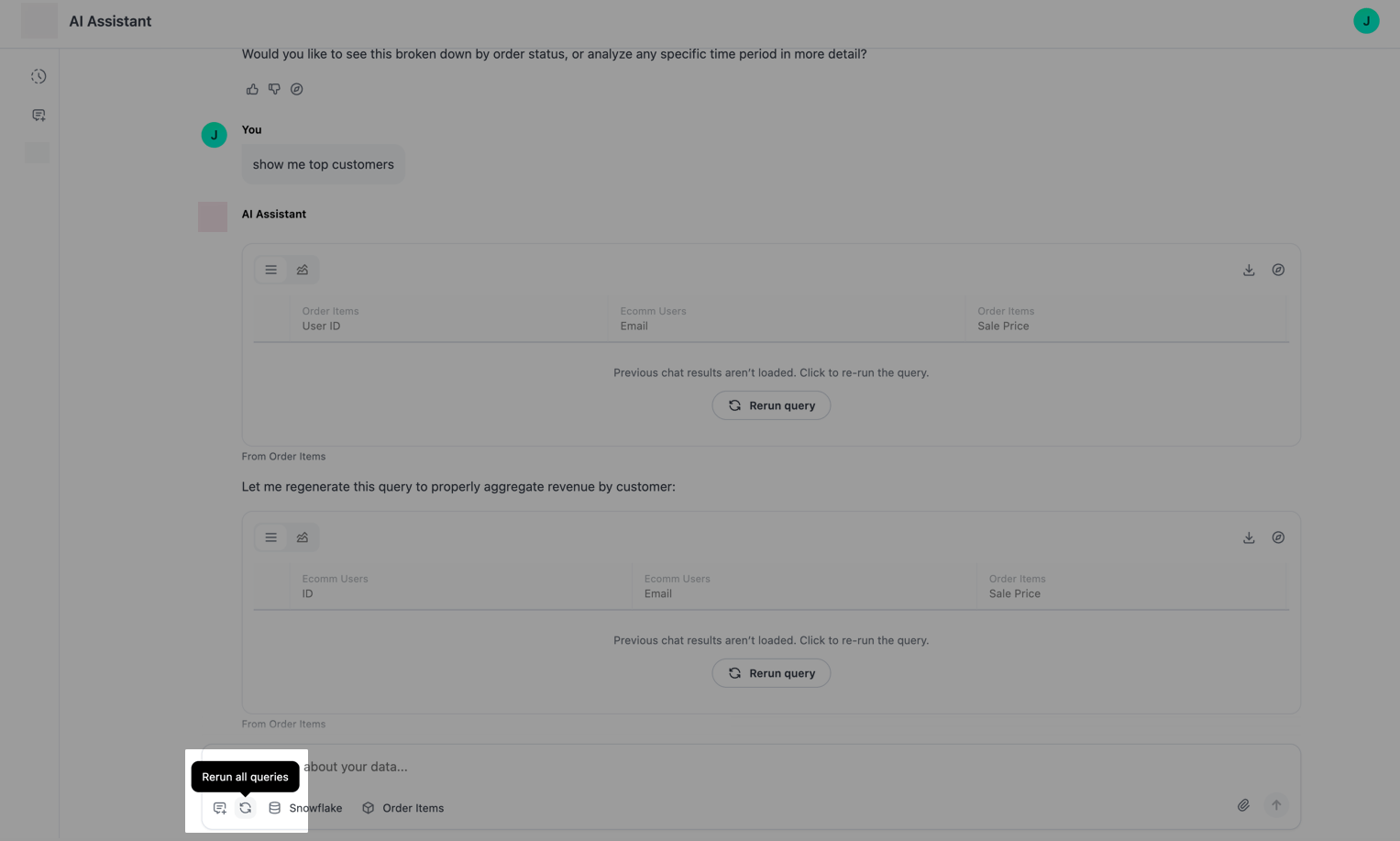
Clicking this icon re-runs all queries in the conversation, updating visualizations and results with current data. To optimize performance, only the most recent queries are re-run.
Creating dashboards
Section titled “Creating dashboards”The JustAsk Agent can create dashboards using the history from a chat session:
- Click the icon in the left navigation.
- In the dialog that displays, you’ll be prompted to:
- Add a name for the new dashboard
- Select the charts to include in the new dashboard
- When finished, click Create.
You’ll be automatically redirected to the new dashboard, which the AI will create in your My documents folder.
Renaming chat sessions
Section titled “Renaming chat sessions”The JustAsk Agent automatically generates a name for each chat session based on your conversation. You can customize these names to make it easier to identify and return to specific conversations.
To rename a chat session, double-click on the active session name in the JustAsk Agent sidebar. An inline text field appears where you can enter a new name. Press Enter to save the new name, or press Escape to revert to the original name.
Session names persist and display whenever you return to the JustAsk Agent. You can only rename chat sessions that you own.
Managing long conversations
Section titled “Managing long conversations”As your conversation with the JustAsk Agent grows, it consumes more of the available context window. When a chat session reaches 75% of the context window, a visual indicator appears on the New chat button to help you recognize when starting a fresh conversation would improve performance.
This feature is automatic and requires no configuration. Starting a new chat when prompted helps maintain optimal AI performance, especially for complex queries and analysis.
Up to three pickers can display in the chat interface:
-
Connections - Lists the connections you have access to. Only displays if more than one connection is available.
-
Models - Lists the available models in the selected connection. Only displays if:
- The connection has more than one model, and
- At least one topic in the model is accessible.
-
Topics - Lists the available topics in the model. Only displays if at least two topics in the model are accessible.
Topic selection
Section titled “Topic selection”If a prompt is entered and a topic isn’t selected - meaning that Auto-select a topic is selected in the topic picker - the AI will attempt to select the most relevant topic.
To scope the AI’s response to a specific dataset, use the pickers to select a specific topic. The AI will remain “locked” to the selected topic until the selection is changed.
Additionally, the picker menus won’t display when a model only has one AI-accessible topic.
Getting help
If you’re stuck and can’t remember how to do something in JustAsk, just ask the JustAsk Agent. Questions like “How do I do [thing]?” will prompt the agent to search the docs and provide you with an answer, all without leaving your JustAsk workflow.
You can also directly tell the agent to search the docs when researching the answer to your question.
Selecting an AI model tier
Section titled “Selecting an AI model tier”The JustAsk Agent provides a model tier selector that allows you to choose between different AI models for your chat session. This lets you optimize for speed or intelligence based on your needs:
- Smarter - Uses the most capable model (Opus) for complex analysis and nuanced queries
- Standard - Uses a balanced model (Sonnet) that provides good performance for most queries
- Faster - Uses a fast model (Haiku) for quick responses to simpler questions
To select a model tier, click the sparkle icon next to the topic selector (the icon) and choose your preferred tier from the dropdown menu. The selector displays the currently active tier, which defaults to your organization or model-level AI settings.
When the selection resets
Section titled “When the selection resets”Your selected model tier will persist throughout the session, applying to prompts sent after the tier is selected. However, the selection automatically resets to the default tier when you:
- Switch to a different data model using the model picker
- Start a new chat session
The default tier for each model is determined by your organization’s AI settings.