Uploading CSVs with data input tables
Sometimes you may want to utilize data in an analysis that isn’t already in a database schema, whether it’s for data enrichment or an initial exploration. Creating a data input table allows you to add data to JustAsk, whether by manually entering data or uploading a CSV or XLSX, without needing to touch your data pipelines.
Limitations
Section titled “Limitations”Currently, data input tables:
- Must be added in a workbook
- Are limited to 500,000 rows
- Can’t be used in joins unless the table is pushed to a database.
- Data types for each column can’t be explicitly selected in JustAsk. column type will be inferred based on the values in the upload. Generally it is best to correct this in the source rather than casting/fixing in the model layer after saving. For dates especially getting the format right in the upload will save you time.
Adding a data input table to a workbook
Section titled “Adding a data input table to a workbook”Data input tables can be added in the workbook of any document.
In a workbook, navigate to Edit > New blank table. A new tab with a blank data input table will display.
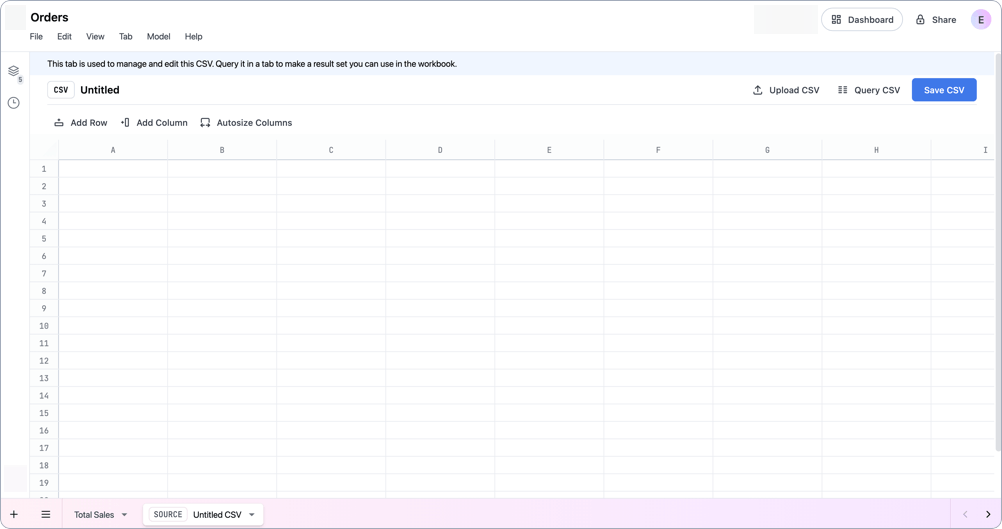
To get data into the table, you can manually enter it or upload a CSV or XLSX:
Manually enter data
Step 1
In the first row, add the names of the columns. The first row must be a header row to allow JustAsk to generate a schema for the table.
Step 2
Enter data into the cells. To add line breaks, use Ctrl + Enter.
Step 3
To add rows or columns, use the Add Row and Add Column options.
Step 4
When you’re finished editing the table, click Save CSV near the top right corner of the page.
Step 5
Enter a name for the table and click Save.
Upload a CSV or XLSX file
Step 1
Click the Upload CSV option near the top right corner of the page.
Step 2
Browse for or drag the file you want to upload into the upload dialog.
Step 3
A topic will automatically be created from the uploaded file.
Step 4
Click Upload to upload the file.
Once there’s data in the table, click Query CSV to create a query using the data. The table will also become available in the field picker in other queries.
Querying and joining data input tables
Section titled “Querying and joining data input tables”Data input tables can be queried like any other table, including using the field picker or working with calculations and formulas.
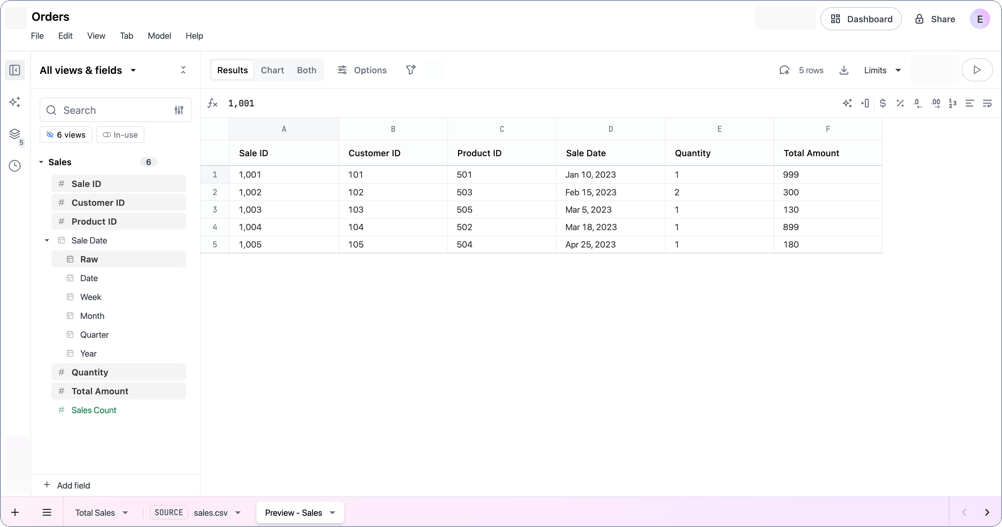
Note: To make the data available outside of the workbook, you’ll need to promote it to the shared model.
How you join data from a data input table to other data depends on whether table uploads are enabled for the database connection used by the workbook:
Traditional joins (Requires database uploads)
If database uploads are enabled for the connection, you can use traditional joins - whether via the UI or in SQL - to create relationships between data input tables and other data.
Workbook tab joins with XLOOKUP
If database uploads aren’t enabled for the connection, you won’t be able to use traditional joins with data input tables. You can, however, use XLOOKUP to perform cross-tab analysis in a workbook:
=XLOOKUP(lookup_value, <query_tab_name>!<lookup_range>, <query_tab_name>!<return_range>)For example, you have a workbook with two tabs: Sales, which is backed by a topic, and Products Upload, which is a query on a data input table. You want to include the names of products purchased in an order alongside other sales data. To join the data in the Products Upload tab to your sales, you could use an XLOOKUP formula like the following to create a new calculation in the Sales tab:
=XLOOKUP(A1,'Products Upload'!B:B, 'Products Upload'!C:C)Updating data input table data
Section titled “Updating data input table data”When making updates to a data input table, keep the following in mind:
- Changes must be promoted to the shared model to be accessible outside the workbook. This is necessary even if the table was previously promoted to the shared model.
- If table uploads (writebacks) are enabled for the connection, JustAsk will create a new table in the database each time the table is saved..
To update a data input table’s data:
-
In a workbook, locate the table in a query tab.
-
Click the options menu next to the table’s name, then Edit Table:
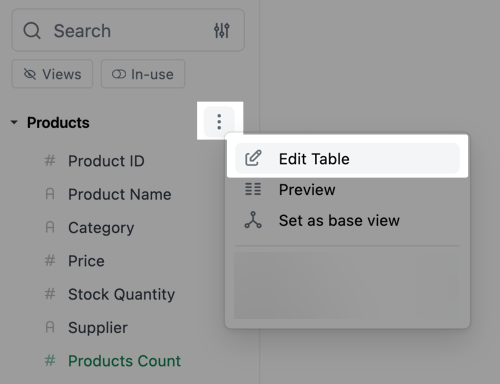
-
The data input table will open in a new tab where you can edit the data as needed.
-
Click Save changes when finished.
Upon a successful save, the updated table will immediately become available in the workbook.