Tracking recent work with the My Activity page
The My Activity page helps you quickly find and return to content you’ve recently worked on in JustAsk. Access this page from the sidebar navigation by clicking the Activity option in the Personal section, located after My documents.
Viewing your activity
Section titled “Viewing your activity”My Activity offers two ways to view your activity:
- Combined view (default) - Shows a deduplicated list of workbooks, models, dashboards, and chat sessions, grouped by time period
- Classic view - Shows a chronological list of every action you’ve taken
Switch between views using the toggle at the top of the page.
Combined view
Section titled “Combined view”The combined view displays your activity by content item, showing you each unique workbook, model, dashboard, or chat session you’ve worked on instead of the individual actions you took. This makes it easier to quickly navigate back to specific content without scrolling through repeated entries.
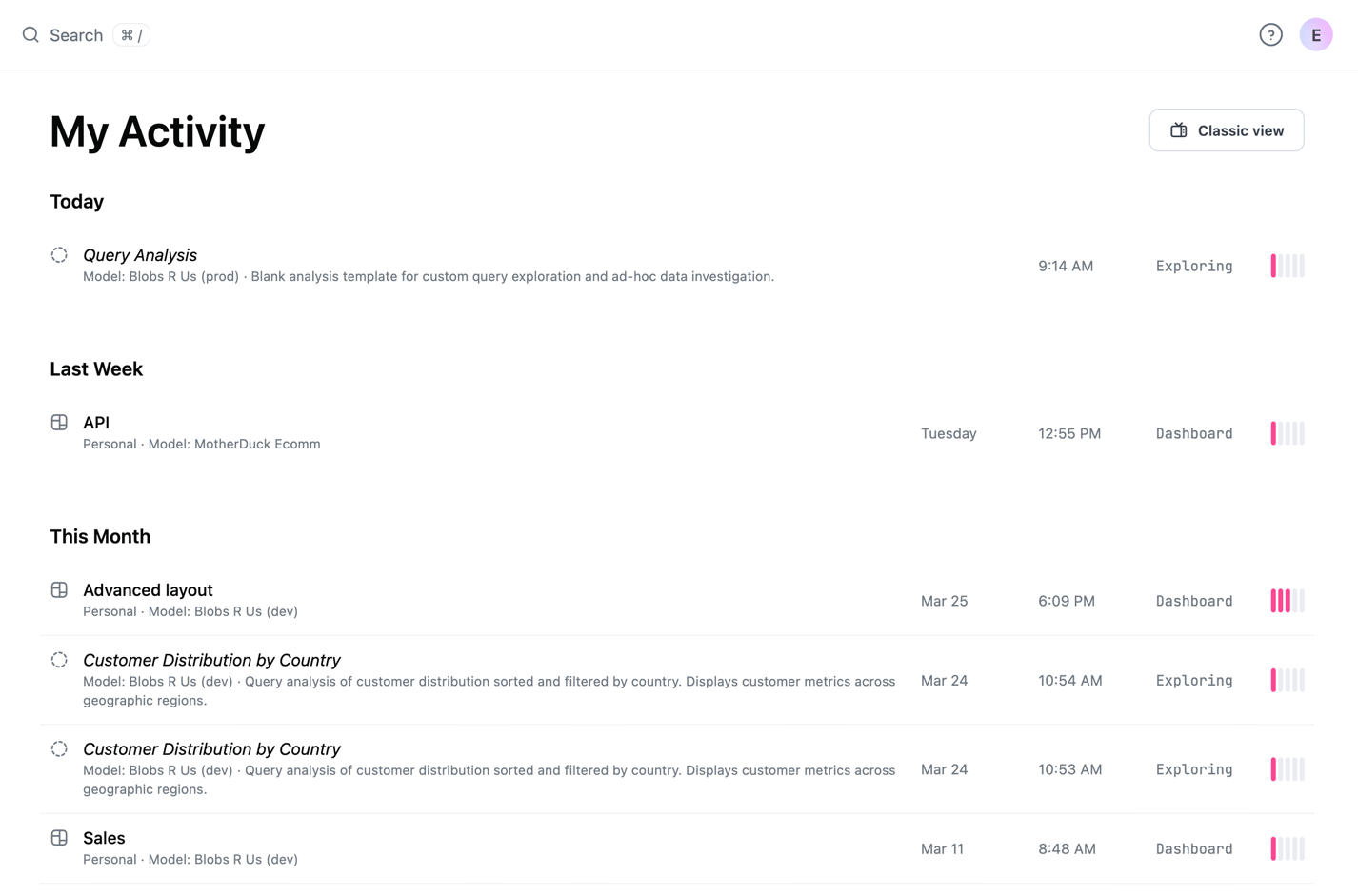
Activity is organized based on when you last worked on the content:
- Today - Content you’ve accessed or modified today
- Yesterday - Content from the previous day
- This week - Content from earlier this week
- Older - Content from previous weeks
Each content item shows:
- The document name and description. For unnamed - typically unsaved - analyses, JustAsk will automatically generate titles and descriptions to make it easier for you to find your work. You can update titles and descriptions when you save the workbook.
- The folder location and breadcrumb path (for workbooks, models, and dashboards)
- The date and time you last worked on it
- The area of the document you last worked on:
- Exploring - Action occurred in an unsaved document
- Workbook - Action occurred in the workbook part of the document
- Dashboard - Action occurred in the dashboard part of the document
- Chat - Activity in a chat session with the JustAsk Agent
- Visual bar indicators that reflect how much activity you’ve had on the content. Hover over a bar to see the number of changes (for workbooks and dashboards) or messages (for chat sessions).
Chat sessions
Section titled “Chat sessions”Chat sessions appear in your activity with a icon and a Chat type label. The activity bars for chat sessions scale based on the number of messages in the conversation, with each bar representing approximately two messages. Hover over the bars to see the total message count for that session.
Loading more activity
Section titled “Loading more activity”As you scroll to the bottom of the list, you can load more activity by clicking Load more. New items are merged into the existing time-period sections, allowing you to browse up to 1,000 entries at a time.
Classic view
Section titled “Classic view”The classic view preserves the original chronological activity list, showing every action you’ve taken in reverse chronological order (most recent first). Each entry in this view represents a single action rather than a deduplicated summary.
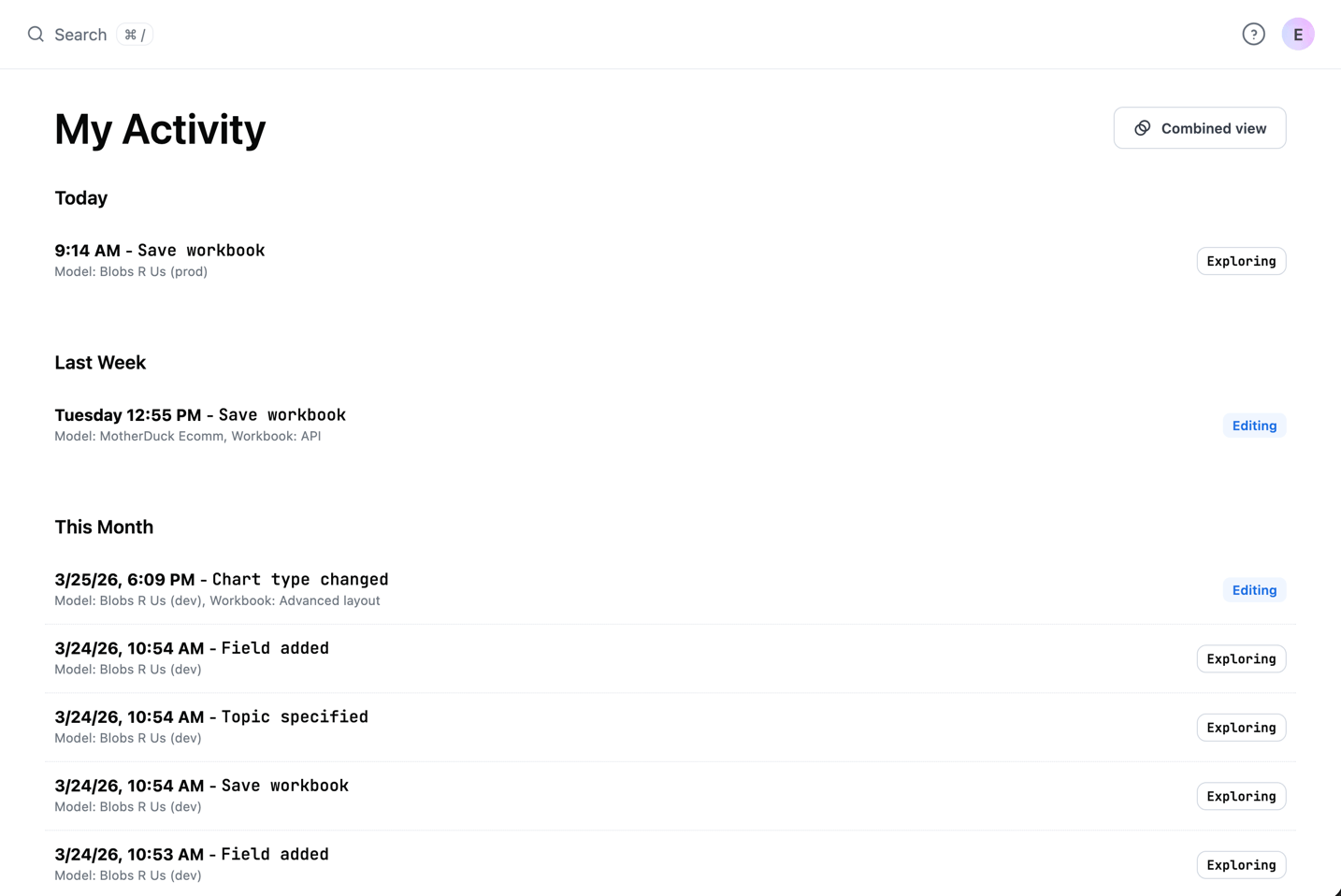
This view is useful when you need to see the exact sequence of your actions or want to find a specific moment in your workflow.
Next steps
Section titled “Next steps”- Navigate content to learn more about organizing and finding content in JustAsk
- Organize content with folders and labels to keep your work structured
- JustAsk Agent to learn about using chat sessions in JustAsk